Dataset schema specification
The dataset schema defines the structure and presentation of data produced by an Actor. It controls what fields each dataset item contains and how that data appears in the Output tab UI.
Schema components
A dataset schema has two main components:
fields(optional) - JSON Schema describing the structure of each dataset item. Enables validation and provides metadata for AI agents.views(required) - Display configurations that control how data appears in the Output tab. Each view can show different fields, ordering, and formatting.
Both components work together: fields describes what data your Actor produces, while views controls how that data is presented.
{
    "actorSpecification": 1,
    "fields": {
        "type": "object",
        "properties": {
            "title": { "type": "string" },
            "price": { "type": "number" }
        }
    },
    "views": {
        "overview": {
            "title": "Overview",
            "transformation": { "fields": ["title", "price"] },
            "display": { "component": "table" }
        }
    }
}
File structure
Place the dataset schema in the .actor folder in your Actor's root directory. You can organize it in two ways:
Inline in actor.json
{
    "actorSpecification": 1,
    "name": "my-scraper",
    "title": "My Scraper",
    "version": "1.0.0",
    "storages": {
        "dataset": {
            "actorSpecification": 1,
            "fields": {},
            "views": {
                "overview": {
                    "title": "Overview",
                    "transformation": {},
                    "display": { "component": "table" }
                }
            }
        }
    }
}
Separate file
{
    "actorSpecification": 1,
    "name": "my-scraper",
    "title": "My Scraper",
    "version": "1.0.0",
    "storages": {
        "dataset": "./dataset_schema.json"
    }
}
{
    "actorSpecification": 1,
    "fields": {},
    "views": {
        "overview": {
            "title": "Overview",
            "transformation": {},
            "display": { "component": "table" }
        }
    }
}
Use a separate file when your schema is complex or you want to keep actor.json concise.
Fields
The fields property defines the structure of each dataset item using JSON Schema. This schema enables validation and provides metadata that helps both humans and AI agents understand your Actor's output.
Why define fields
When AI agents interact with Actors through the MCP server or API, they rely on field metadata to understand what data the Actor produces. Including title, description, and example properties enables agents to:
- Understand the meaning of each output field
- Chain Actors together by matching inputs to outputs
- Generate appropriate queries and handle responses correctly
Without this metadata, agents must infer field meanings from names alone, which leads to errors.
Field properties
Each field in your schema can include standard JSON Schema properties:
| Property | Type | Description |
|---|---|---|
type | string | The data type (string, number, boolean, array, object, null). |
title | string | A human-readable name for the field. |
description | string | Explains what the field contains and how to interpret it. |
example | any | A sample value that demonstrates the expected format. |
enum | array | A list of allowed values for the field. |
Example with field metadata
{
    "actorSpecification": 1,
    "fields": {
        "$schema": "http://json-schema.org/draft-07/schema#",
        "type": "object",
        "properties": {
            "productName": {
                "type": "string",
                "title": "Product name",
                "description": "The full name of the product as displayed on the product page.",
                "example": "Wireless Bluetooth Headphones"
            },
            "price": {
                "type": "number",
                "title": "Price",
                "description": "The current price in USD. Does not include shipping or taxes.",
                "example": 49.99
            },
            "currency": {
                "type": "string",
                "title": "Currency code",
                "description": "Three-letter ISO 4217 currency code.",
                "example": "USD",
                "enum": ["USD", "EUR", "GBP"]
            },
            "inStock": {
                "type": "boolean",
                "title": "In stock",
                "description": "Whether the product is currently available for purchase.",
                "example": true
            },
            "url": {
                "type": "string",
                "title": "Product URL",
                "description": "Direct link to the product page.",
                "example": "https://example.com/products/wireless-headphones"
            }
        },
        "required": ["productName", "price", "url"]
    },
    "views": {
        "overview": {
            "title": "Overview",
            "transformation": {
                "fields": ["productName", "price", "inStock", "url"]
            },
            "display": {
                "component": "table",
                "properties": {
                    "url": { "format": "link" },
                    "inStock": { "format": "boolean" }
                }
            }
        }
    }
}
Use camelCase for field names. This matches the convention used in input schemas and ensures consistency across your Actor's configuration.
For validation options and error handling, see Dataset validation.
Views
Views control how data appears in the Output tab UI. Each view defines which fields to show, in what order, and with what formatting.
Why use views
Dataset views are like database views - different perspectives on the same data. Instead of showing all fields at once, views present focused subsets. Users find data faster, and AI agents can better understand your output.
For a real-world example, see Google Maps Scraper which uses views to separate place details from review data.
When to use views
- Control field order and formatting - Without views, fields appear in JSON property order. Views let you order fields logically and format URLs as links, images inline, etc.
- Expand nested data with
unwind- Arrays of nested objects appear collapsed by default. Useunwindto expand them into readable rows. - Create focused perspectives - A scraper with 50+ fields can offer an "Overview" view and a "Details" view. Same data, different focus.
A single view is fine for simple Actors with fewer than 10 fields where all fields are equally relevant.
Organizing views by use case
The same data often serves different purposes. An e-commerce scraper could offer a "Marketing" view (name, image, description) and a "Pricing" view (price, discount, competitor price). The first view defined becomes the default.
What views are NOT for
Views show the same data from different angles. They're NOT for:
- Separating unrelated data types - Storing posts, comments, and profiles in one dataset, then using views to separate them. Use separate datasets for unrelated data types.
- Controlling export formats - Views don't change how data exports to JSON, CSV, or Excel. Export format is set in download options or the Dataset API
formatparameter. Views only affect Console UI display.
Basic view example
The following Actor stores data using Actor.pushData():
import { Actor } from 'apify';
await Actor.init();

await Actor.pushData({
    numericField: 10,
    pictureUrl: 'https://www.google.com/images/branding/googlelogo/2x/googlelogo_color_92x30dp.png',
    linkUrl: 'https://google.com',
    textField: 'Google',
    booleanField: true,
    dateField: new Date(),
    arrayField: ['#hello', '#world'],
    objectField: {},
});

await Actor.exit();
Configure the Output tab UI with a dataset schema:
{
    "actorSpecification": 1,
    "name": "Actor Name",
    "title": "Actor Title",
    "version": "1.0.0",
    "storages": {
        "dataset": {
            "actorSpecification": 1,
            "views": {
                "overview": {
                    "title": "Overview",
                    "transformation": {
                        "fields": [
                            "pictureUrl",
                            "linkUrl",
                            "textField",
                            "booleanField",
                            "arrayField",
                            "objectField",
                            "dateField",
                            "numericField"
                        ]
                    },
                    "display": {
                        "component": "table",
                        "properties": {
                            "pictureUrl": {
                                "label": "Image",
                                "format": "image"
                            },
                            "linkUrl": {
                                "label": "Link",
                                "format": "link"
                            },
                            "textField": {
                                "label": "Text",
                                "format": "text"
                            },
                            "booleanField": {
                                "label": "Boolean",
                                "format": "boolean"
                            },
                            "arrayField": {
                                "label": "Array",
                                "format": "array"
                            },
                            "objectField": {
                                "label": "Object",
                                "format": "object"
                            },
                            "dateField": {
                                "label": "Date",
                                "format": "date"
                            },
                            "numericField": {
                                "label": "Number",
                                "format": "number"
                            }
                        }
                    }
                }
            }
        }
    }
}
Each view has two parts:
transformation- Which fields to fetch and how to transform themdisplay- How to visually present the data in the UI
The Output tab displays fields from transformation.fields in the specified order:
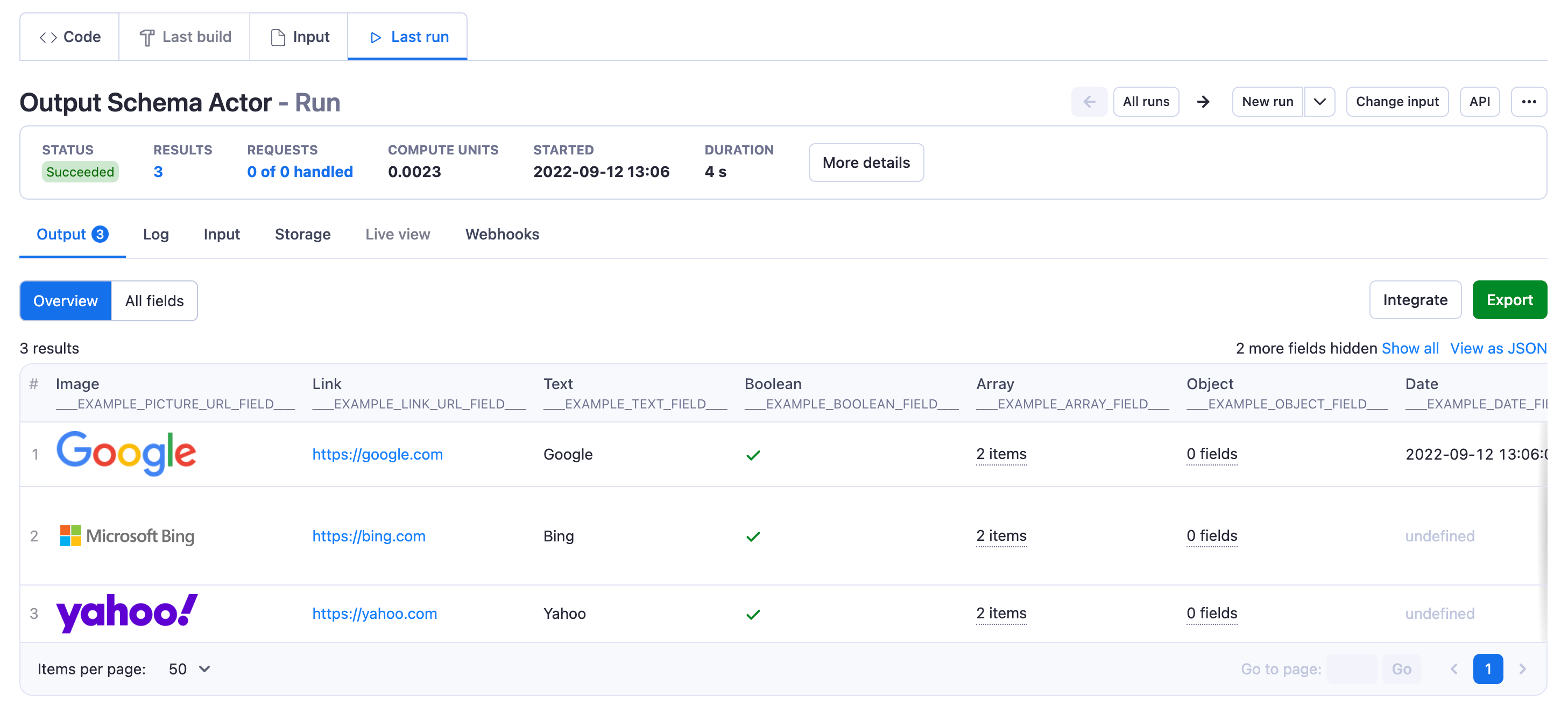
Multiple views example
Create multiple views for different use cases. This e-commerce scraper offers Marketing and Pricing views:
{
    "actorSpecification": 1,
    "views": {
        "marketing": {
            "title": "Marketing",
            "description": "Fields for marketing and content creation",
            "transformation": {
                "fields": ["productName", "imageUrl", "description", "price"]
            },
            "display": {
                "component": "table",
                "properties": {
                    "imageUrl": {
                        "label": "Image",
                        "format": "image"
                    }
                }
            }
        },
        "pricing": {
            "title": "Pricing analysis",
            "description": "Fields for competitive pricing analysis",
            "transformation": {
                "fields": [
                    "productName",
                    "price",
                    "currency",
                    "discountPercent",
                    "competitorPrice",
                    "priceDifference"
                ]
            },
            "display": {
                "component": "table",
                "properties": {
                    "discountPercent": {
                        "label": "Discount %",
                        "format": "number"
                    },
                    "priceDifference": {
                        "label": "vs. Competitor",
                        "format": "number"
                    }
                }
            }
        }
    }
}
The first view defined becomes the default tab.
Handling nested structures
Tabular formats (Output tab table, Excel, CSV) require flat data. If your Actor produces nested JSON structures, transform them using these options:
Flatten nested objects
Use transformation.flatten to convert nested objects into flat key-value pairs:
{
    "transformation": {
        "flatten": ["address"],
        "fields": ["name", "address.street", "address.city"]
    }
}
With flatten: ["address"], the object {"address": {"street": "Main St", "city": "NYC"}} becomes {"address.street": "Main St", "address.city": "NYC"}.
Use the flattened property names (e.g., address.street) in both transformation.fields and display.properties.
Unwind arrays
Use transformation.unwind to expand arrays of nested objects into separate rows:
{
    "transformation": {
        "unwind": ["reviews"],
        "fields": ["productName", "reviewText", "rating"]
    }
}
With unwind: ["reviews"], a product with 5 reviews becomes 5 rows in the output, each containing the product name plus one review's data.
Flatten in Actor code
Alternatively, flatten nested structures in your Actor code before calling Actor.pushData().
Reference
DatasetSchema object
| Property | Type | Required | Description |
|---|---|---|---|
actorSpecification | integer | true | Version of the dataset schema structure. Currently only version 1 is available. |
fields | JSONSchema object | false | Schema of one dataset object using JSON Schema Draft 2020-12 or compatible format. |
views | Object | true | An object containing view definitions. Each key is a view ID, each value is a DatasetView object. |
DatasetView object
| Property | Type | Required | Description |
|---|---|---|---|
title | string | true | The title shown in the Output tab and API. |
description | string | false | Description of the view. Only available in API responses. |
transformation | ViewTransformation | true | Defines how to fetch and transform data from the Dataset API. |
display | ViewDisplay | true | Defines how to render data in the Output tab UI. |
ViewTransformation object
| Property | Type | Required | Description |
|---|---|---|---|
fields | string[] | true | Fields to include in the output. Order determines column order in the UI. Missing field values display as undefined. |
unwind | string[] | false | Array fields to expand into parent objects. With unwind: ["foo"], {"foo": {"bar": "hello"}} becomes {"bar": "hello"}. |
flatten | string[] | false | Object fields to flatten. With flatten: ["foo"], {"foo": {"bar": "hello"}} becomes {"foo.bar": "hello"}. |
omit | string[] | false | Fields to exclude from output. Supports nested field names. |
limit | integer | false | Maximum number of results. Default is all results. |
desc | boolean | false | Sort order. Default is ascending (oldest first). Set true for descending (newest first). |
ViewDisplay object
| Property | Type | Required | Description |
|---|---|---|---|
component | string | true | Display component. Only table is available. |
properties | Object | false | Field display settings. Keys match transformation.fields, values are ViewDisplayProperty objects. If not set, fields render as strings, arrays, or objects automatically. |
ViewDisplayProperty object
| Property | Type | Required | Description |
|---|---|---|---|
label | string | false | Column header text in the table view. |
format | string | false | Display format: text, number, date, link, boolean, image, array, or object. |